How do I onboard onto GXE as an Investor?
Last updated: November 5, 2026
Overview
This onboarding guide will walk you through creating an account and completing your onboarding.
⚠Note: If you are investing via a trust and/or company, then you must be a controlling party of the entity or trustee (usually this is a director or as an individual trustee). If you are an employee, advisor or other related party then please contact support@gxe.com to discuss your account options.
Step 1: Accept your GXE email invitation and create your account
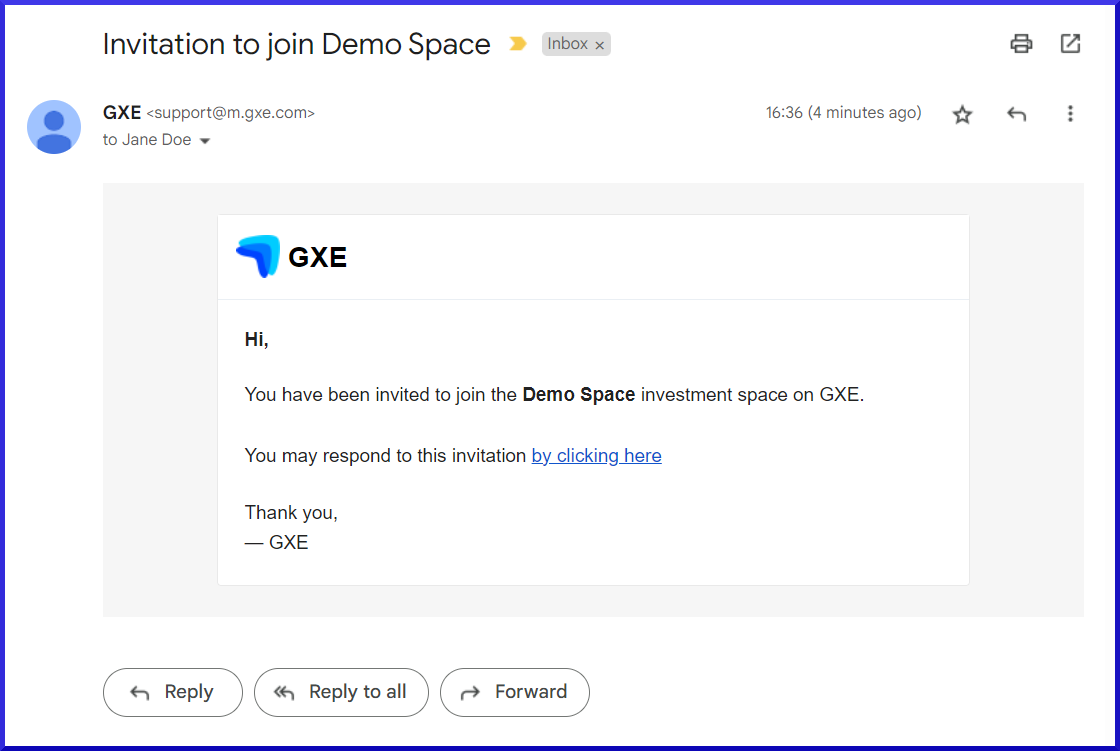
Find Email Invitation - You should have received an email from support@m.gxe.com inviting you to join GXE. Click the blue text ‘by clicking here’. This will take you to the GXE website where you’ll be asked to create an account.
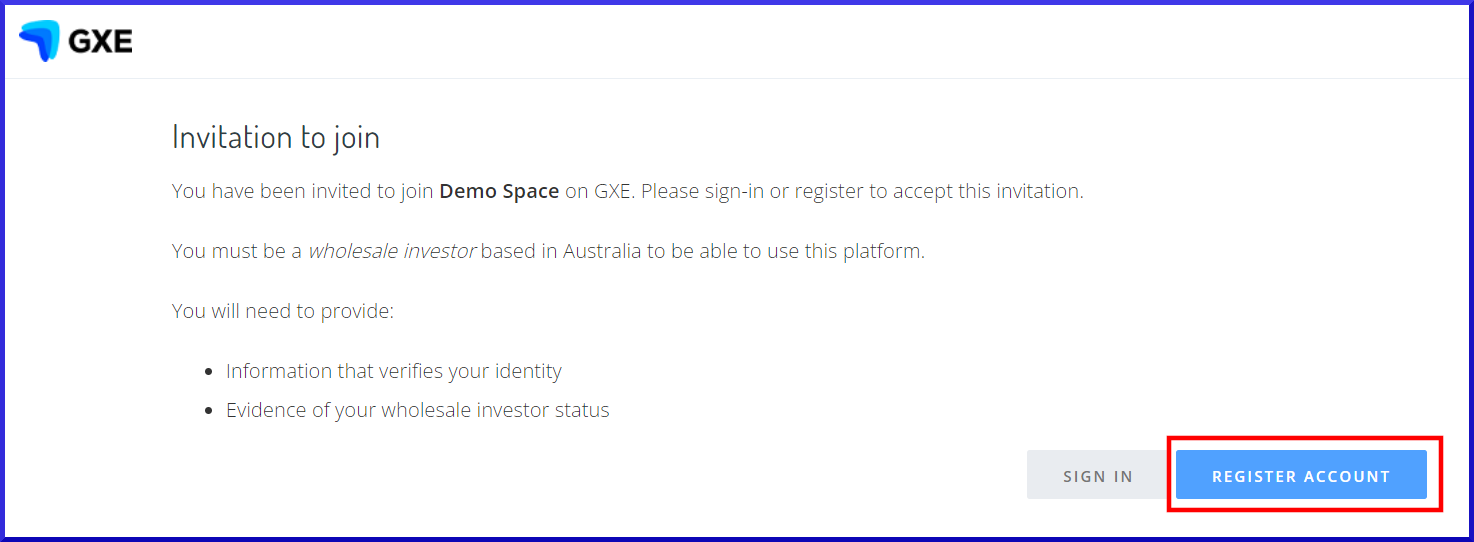
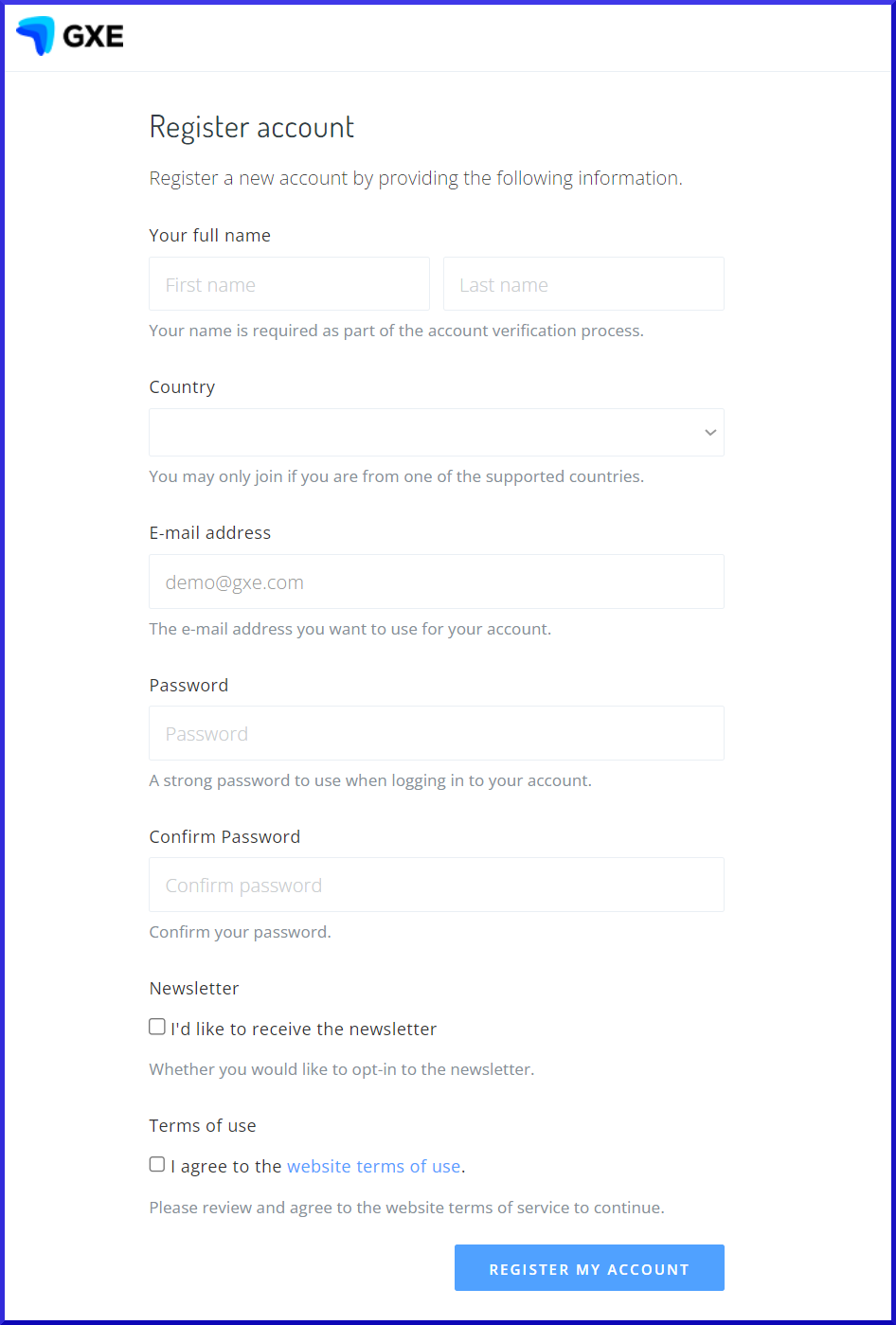
Register Account - Click the blue 'Register Account' button if this is the first time you are using GXE and complete the form.
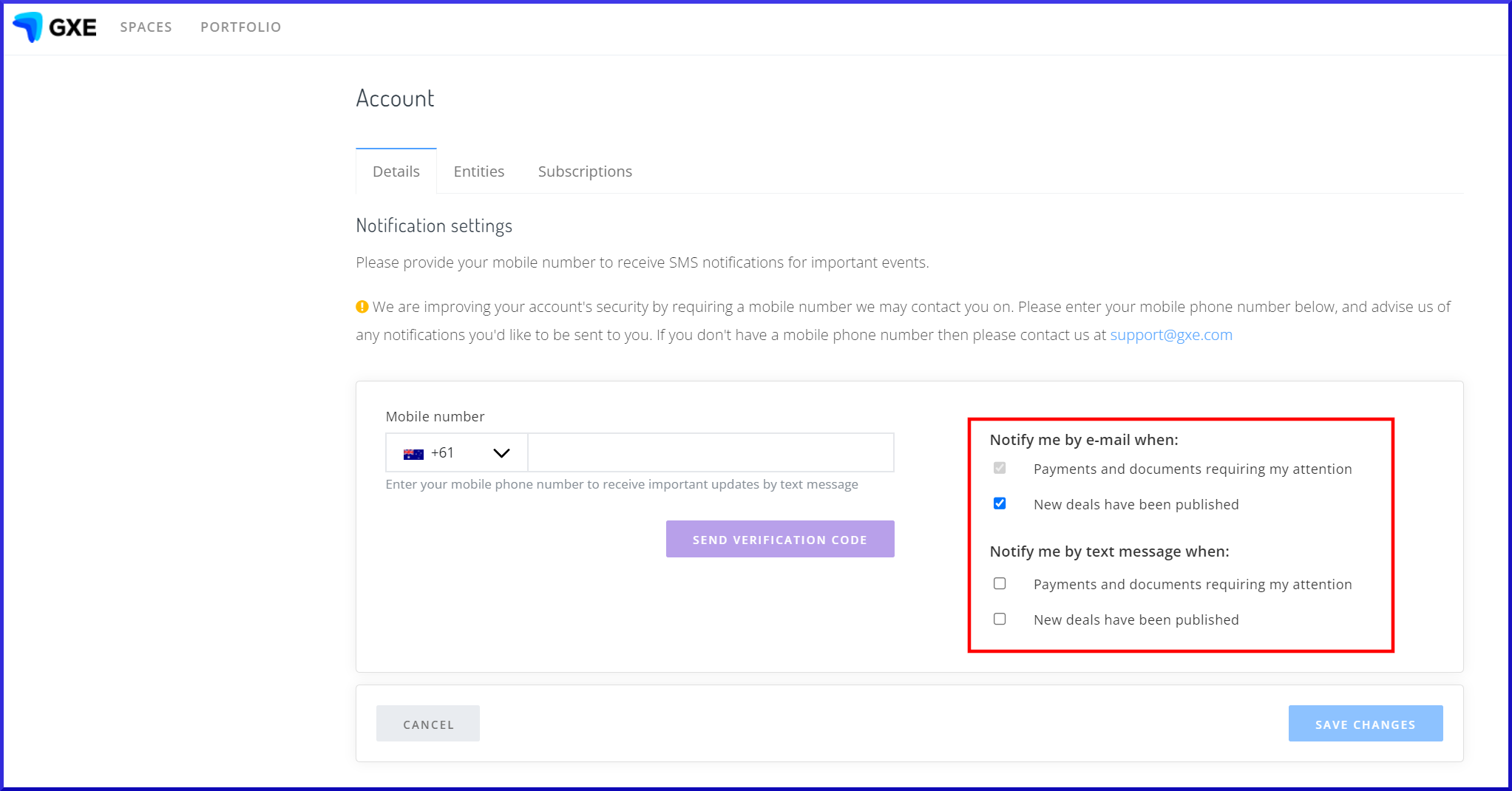
Add Phone Number - Add your mobile phone number and select your notification preferences.
Part 1: Enter your phone number
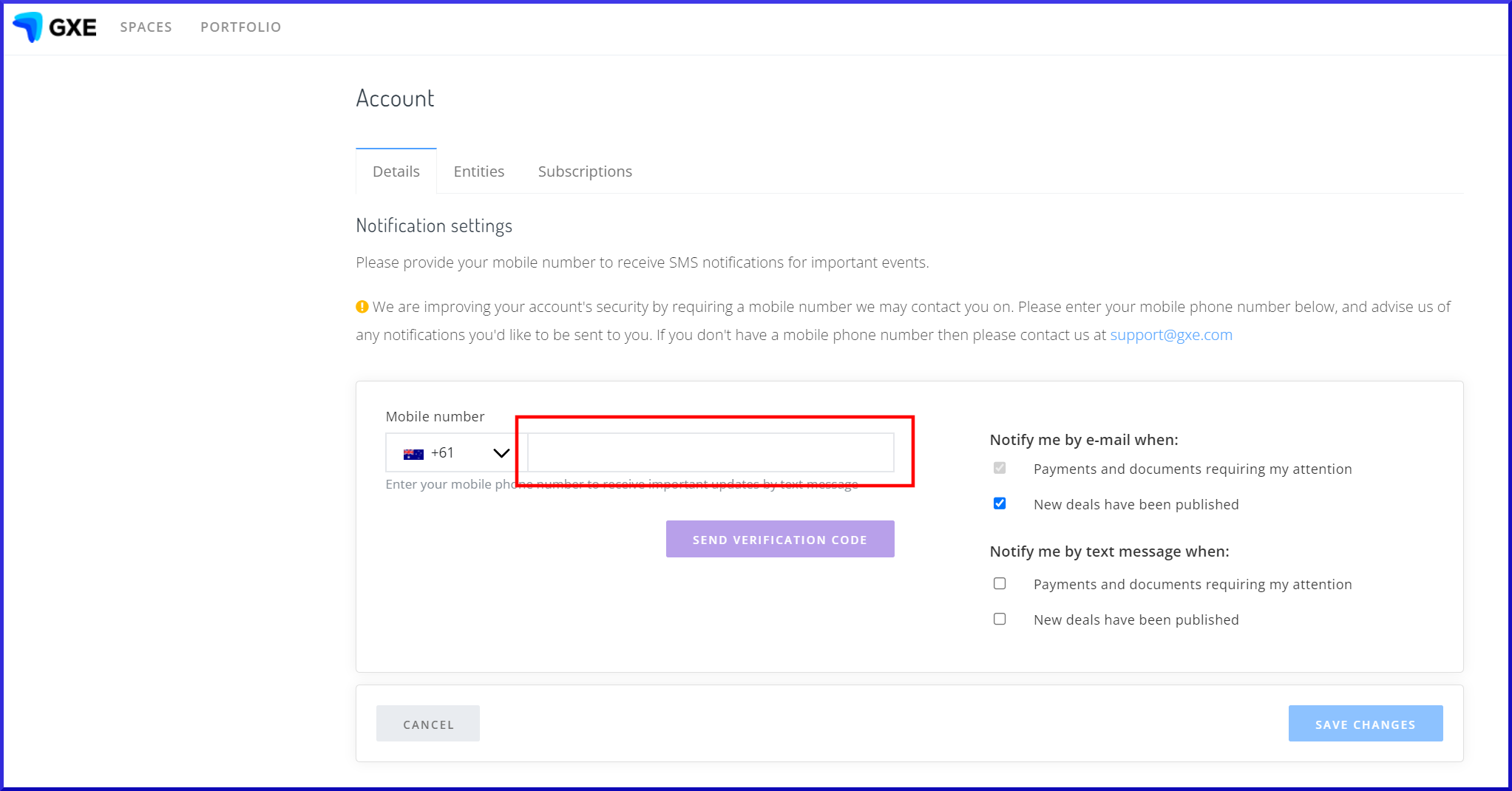
Part 2: Select your notification preferences
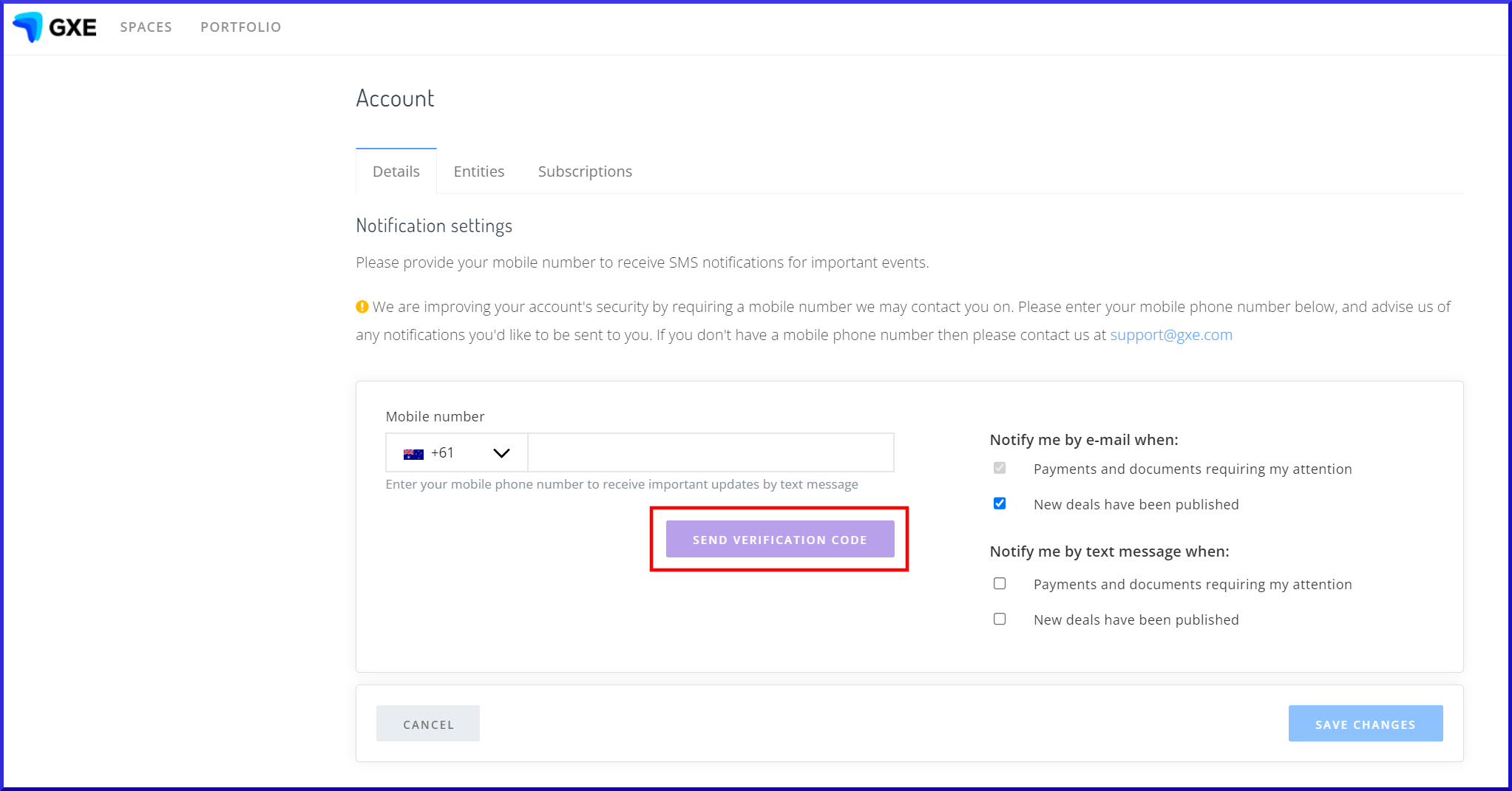
Part 3: Request a verification code
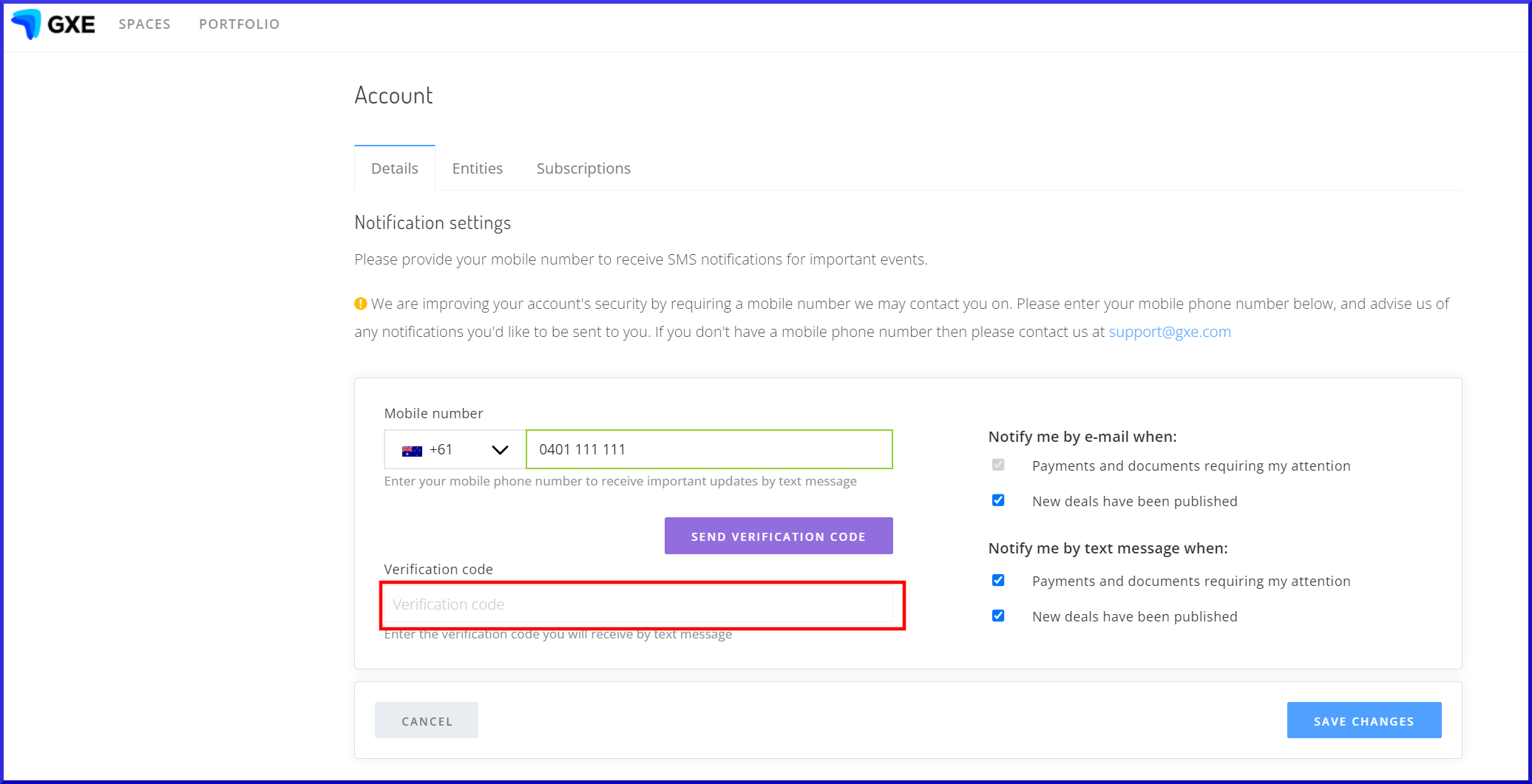
Part 4: Enter the verification code GXE sent via sms to your phone
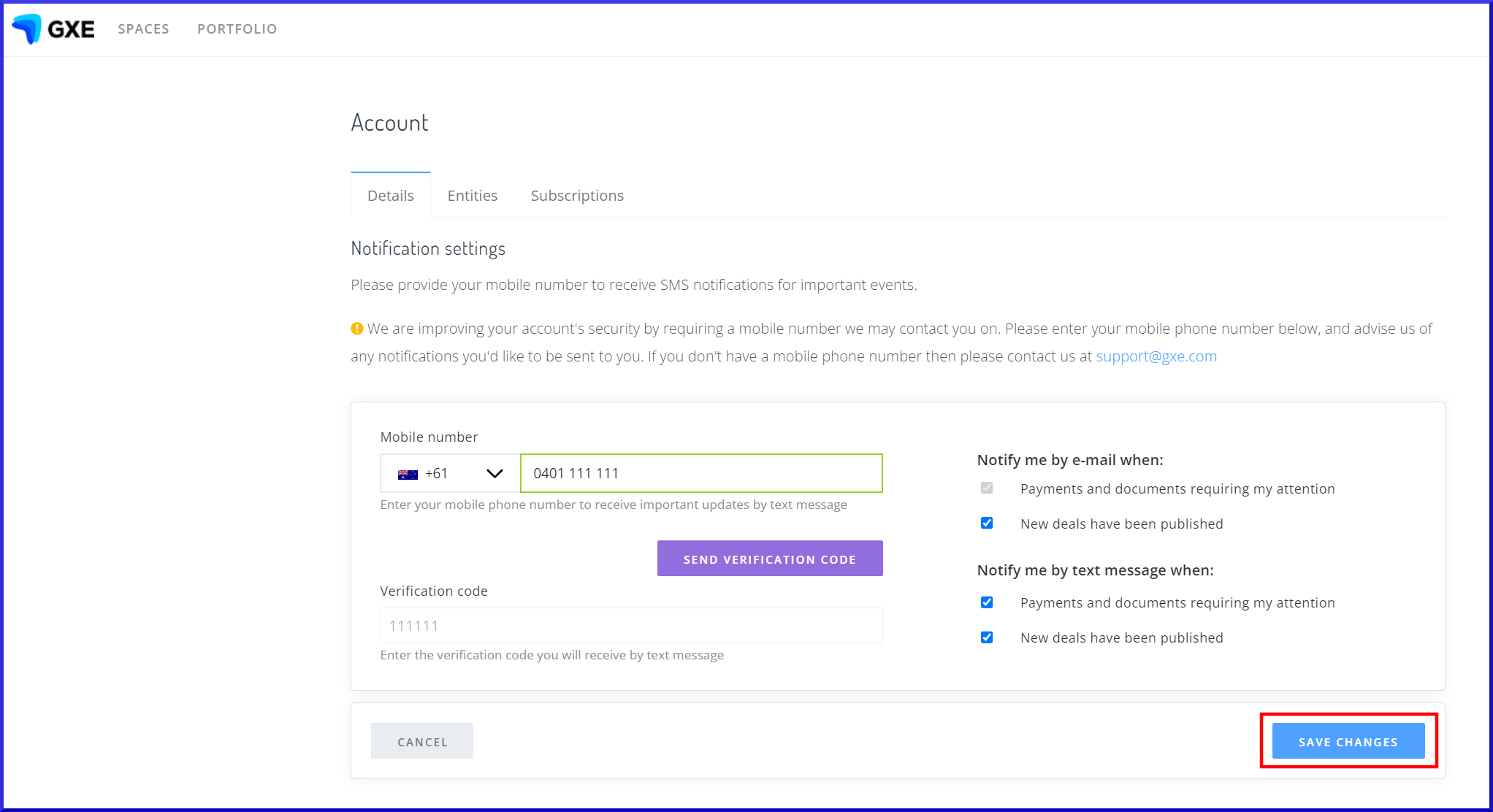
Part 5: Click the blue button "Save Changes"
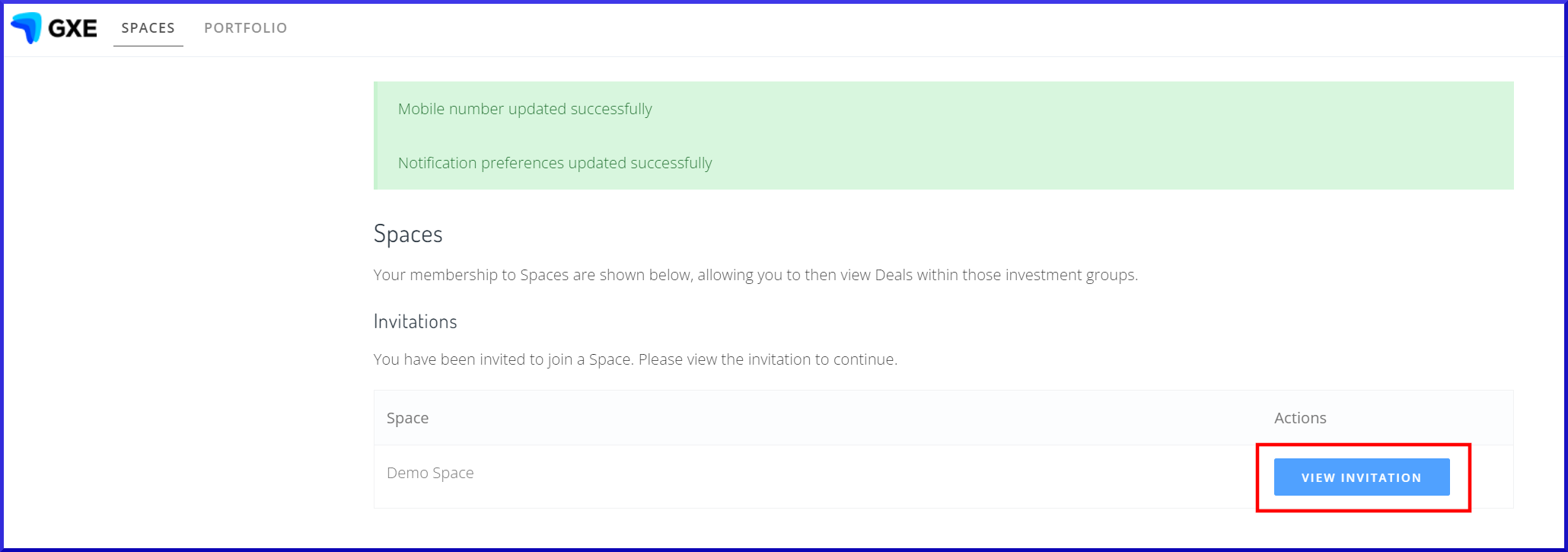
Accept Space Invitation - Click the blue button 'View Invitation' or 'Accept Invite' (If you can't find the invitation then you can also view it here)
What's a space? It's an exclusive area on GXE that your investment manager can publish investment offers to investors.

Step 2: Complete your GXE account
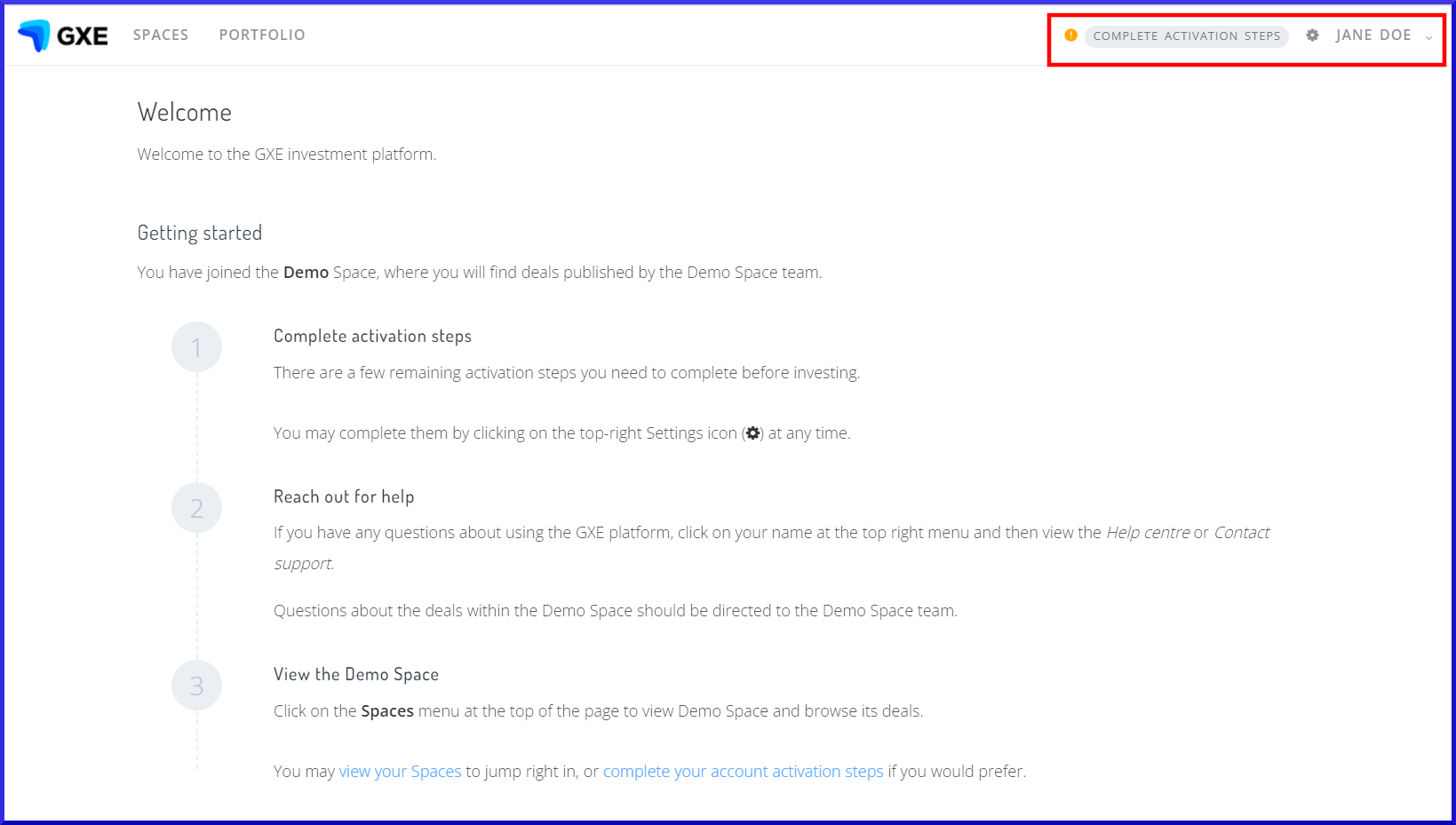
On a desktop computer - In the top right-hand corner, click either:
"Complete Activation Steps" text; or
The gear icon; or
Your name and then "Account details"
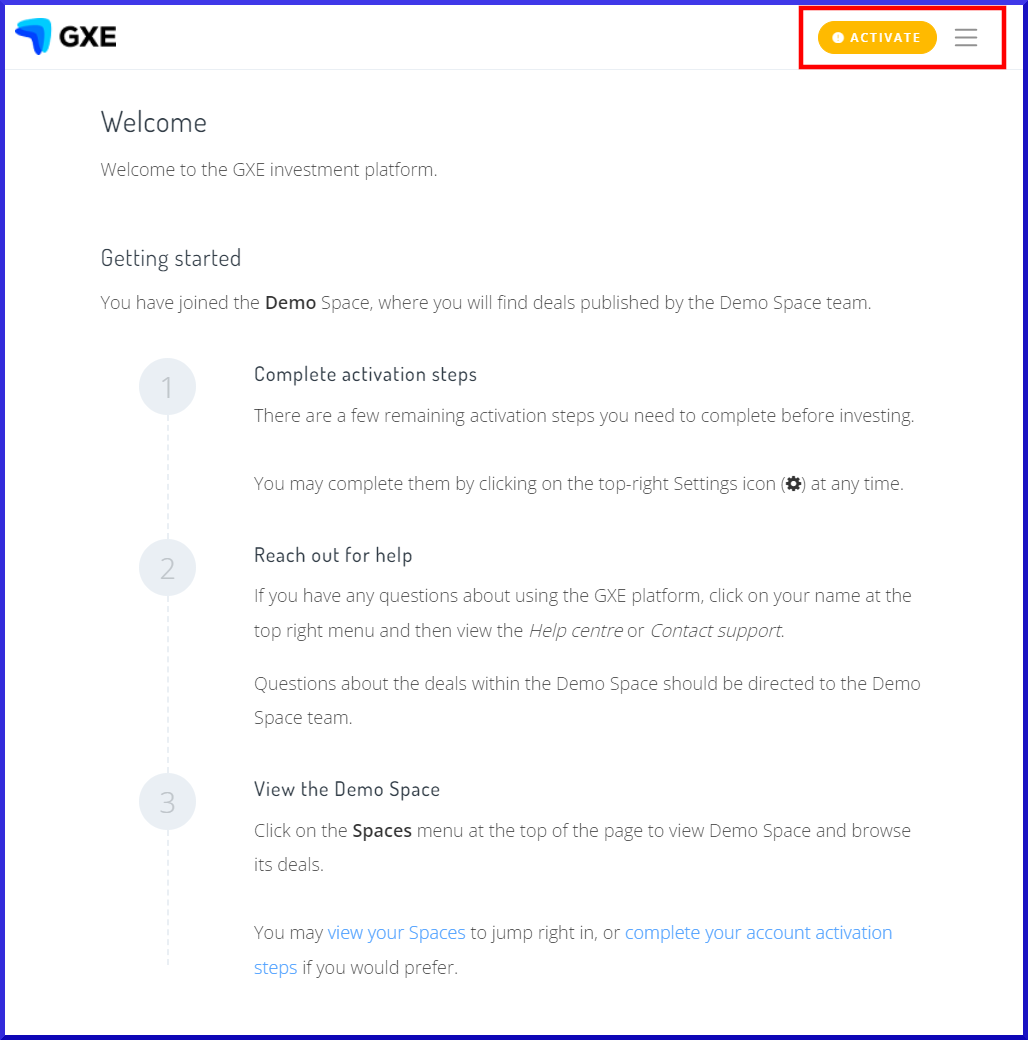
On mobile phone - In the top right-hand corner, select either:
The yellow "Activate" button; or
The three lines menu and then "Account details"
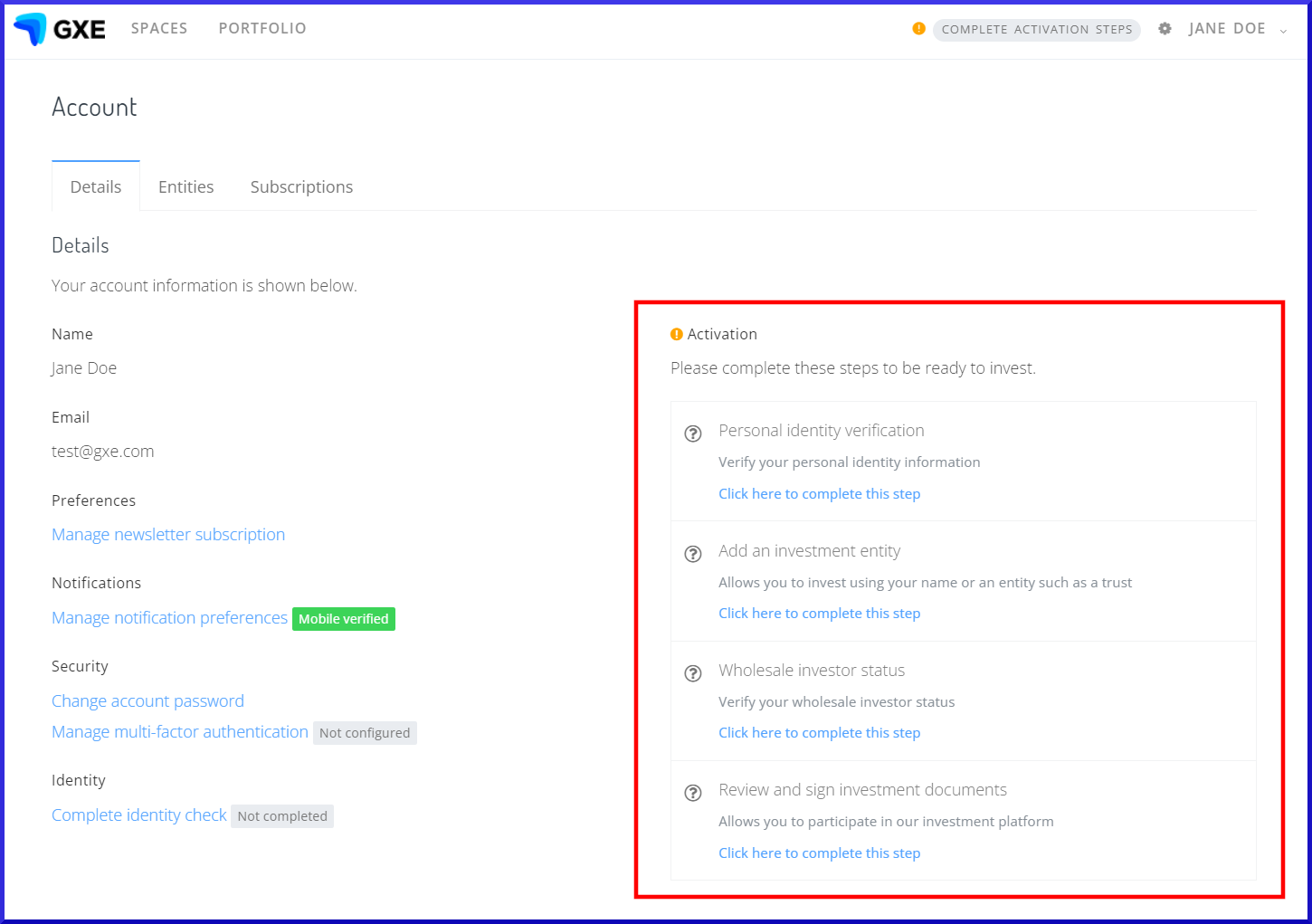
Complete activation - In your Account Details page, under the ‘Activation’ heading, complete the following steps:
Part 1: Personal identity verification
Part 2: Add investment entities
Part 3: Wholesale investor status
Part 4: Review and sign investment documents
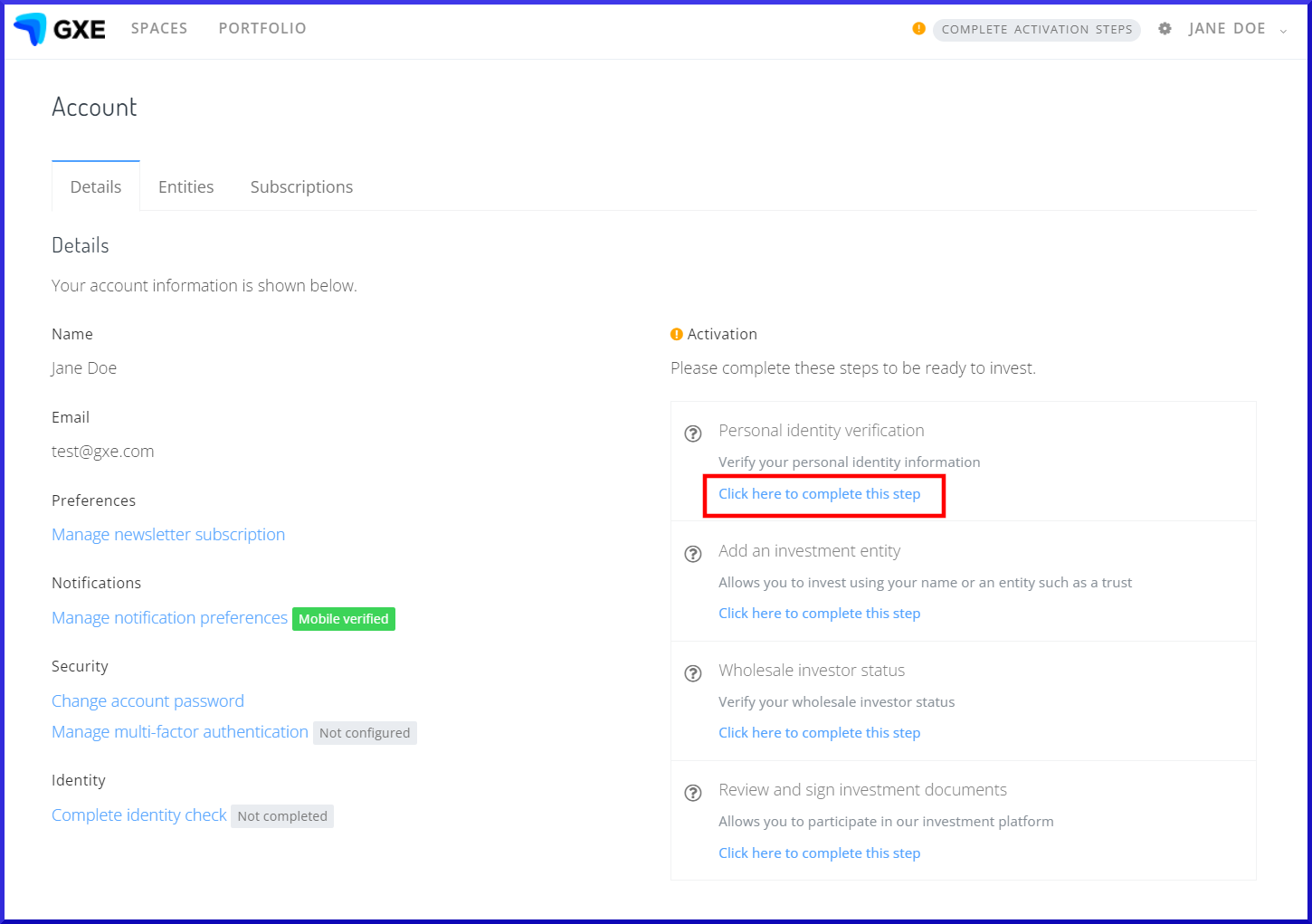
Verify your personal identity
You'll need a passport or Australian driver licence
Click the link below the ‘Personal identity verification' subheading
Now, follow the steps
Step 3: Add investment entities
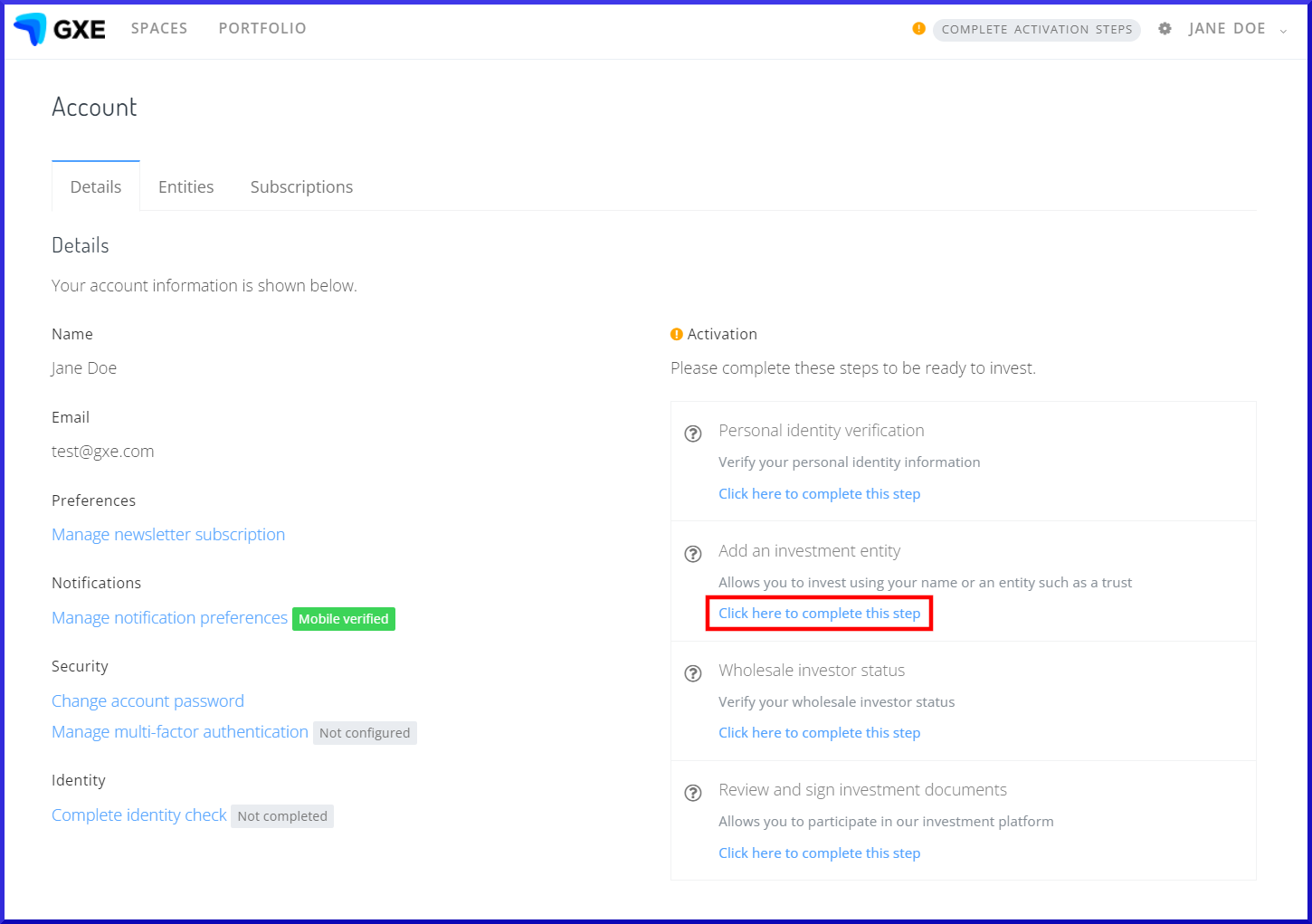
Open your Activation steps again here
Click the link below the 'Add an investment entity' subheading or open this link
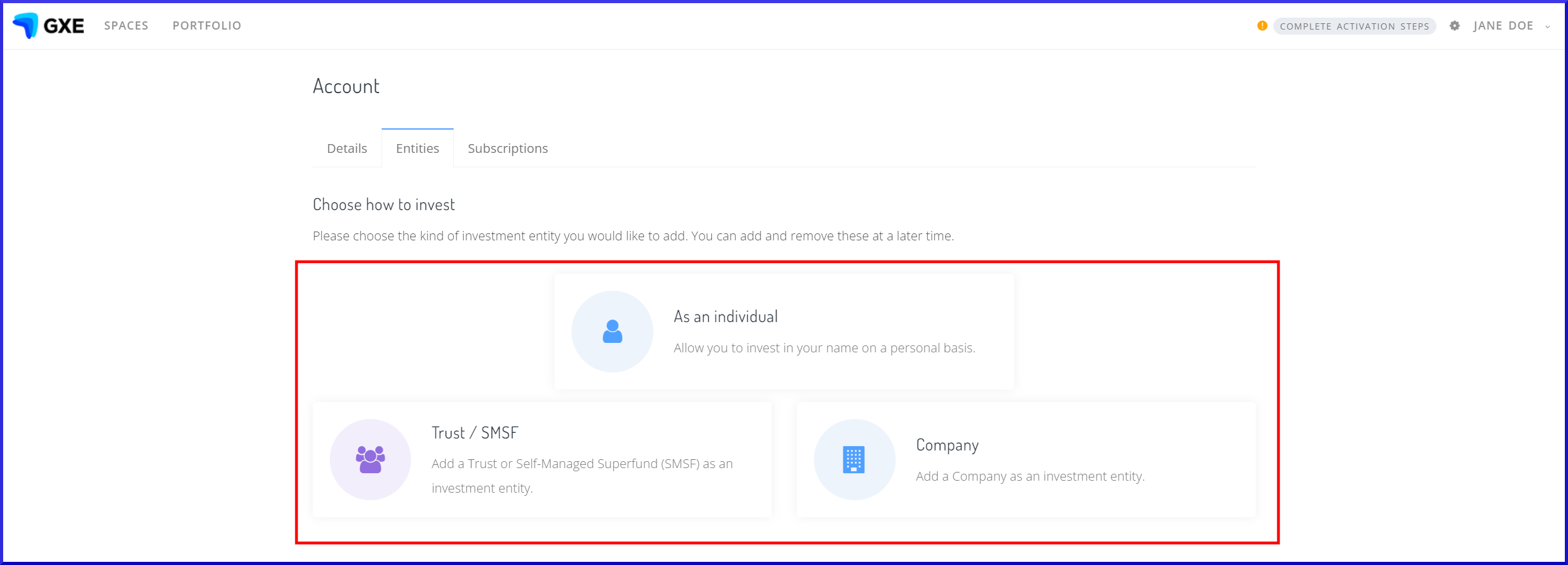
Select the investment entity type you'd like to add first on GXE.
You can invest via:
Your personal name
Trust
SMSF; and/or
Company
You can have more than one investment entity added to your account
Further information here: I invest using a company, trust, SMSF or another structure; does GXE allow this?
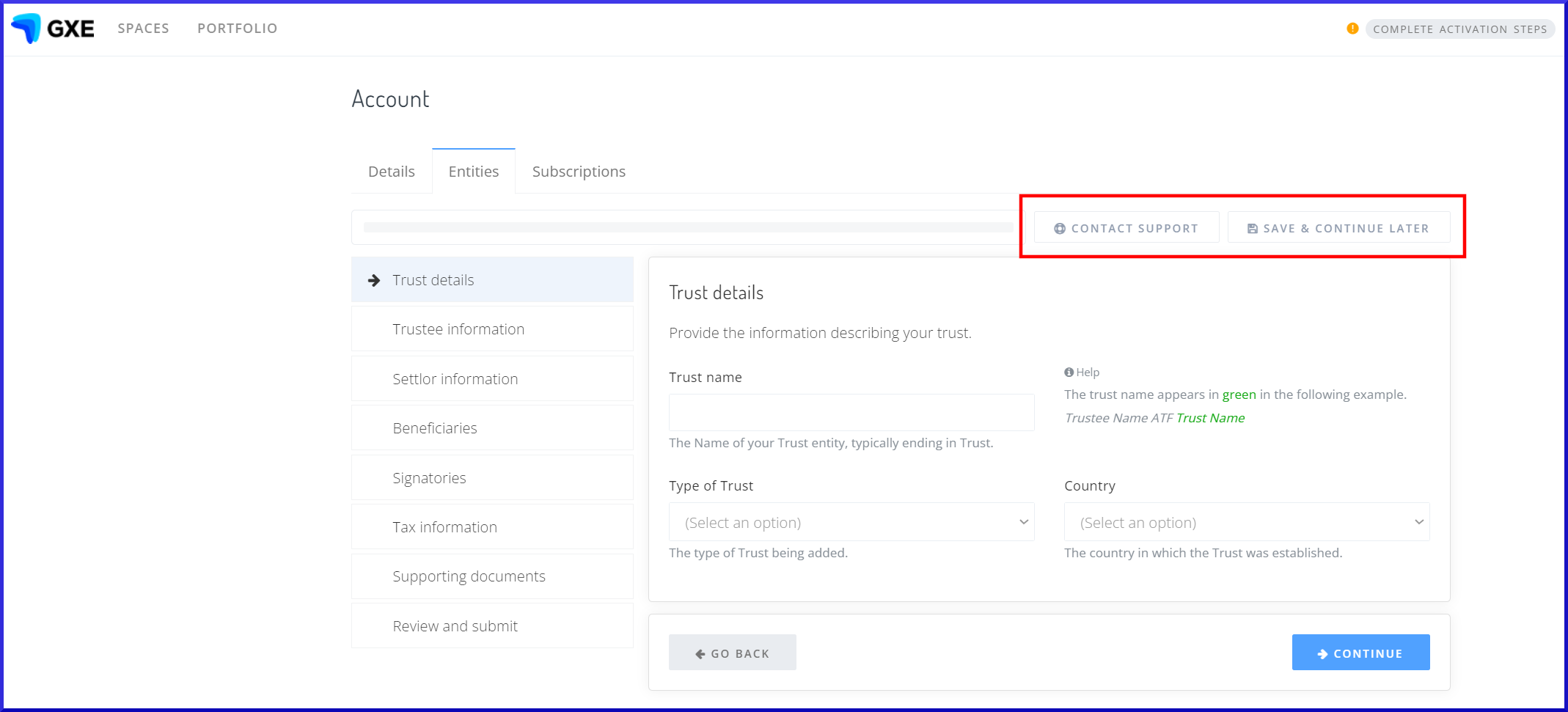
Now follow the steps to setup your chosen investment entities. At anytime you can save your progress or contact support by clicking the buttons in the top right-hand corner.
Step 4: Verify Your Wholesale Investor Status
Each investment entity must be verified as a wholesale client in order to invest on the platform.
Open your Activation steps again here
Click the link below the 'Wholesale investor status' subheading
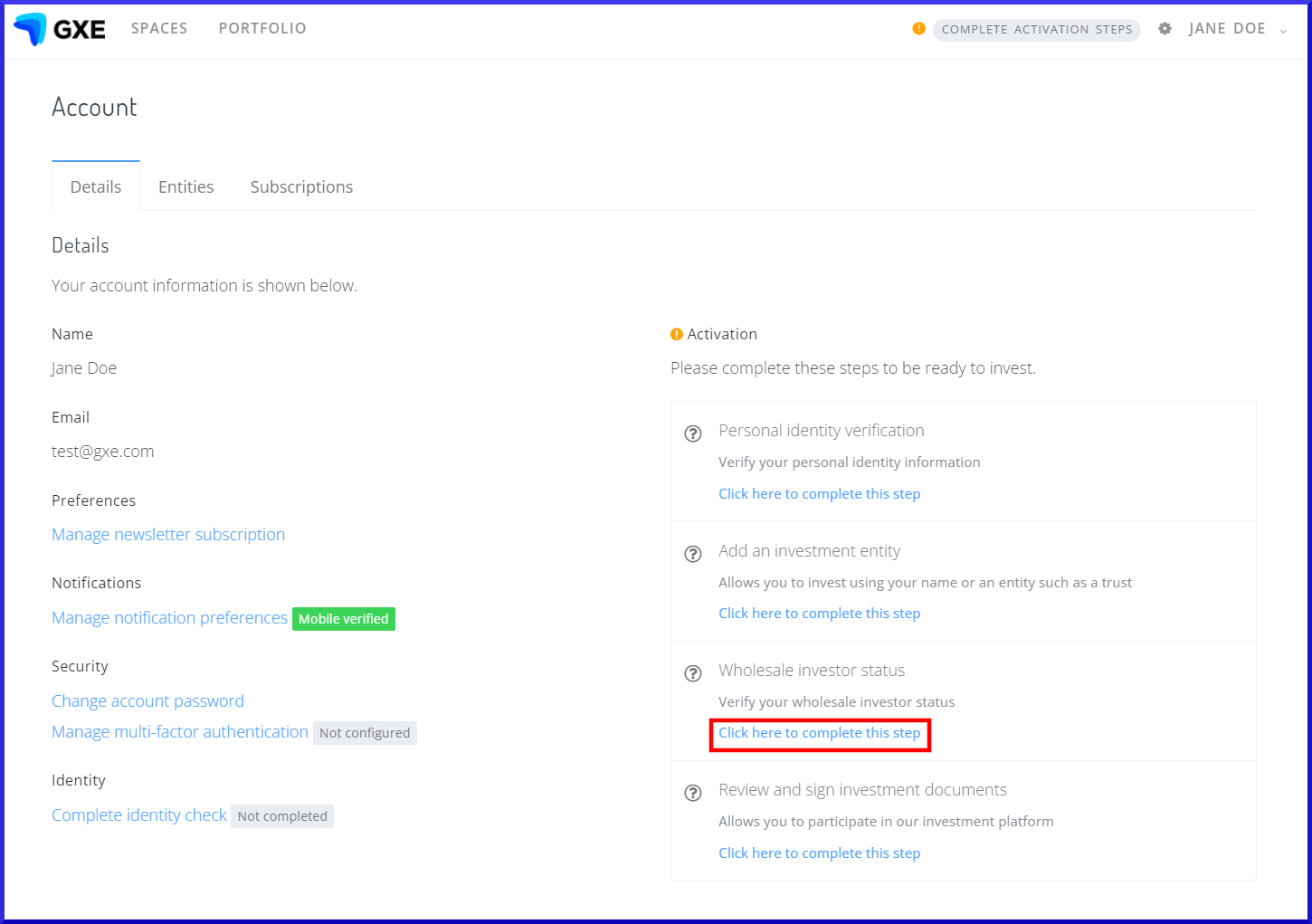
Now follow the steps in this article to verify your Wholesale Client status for the first time on GXE
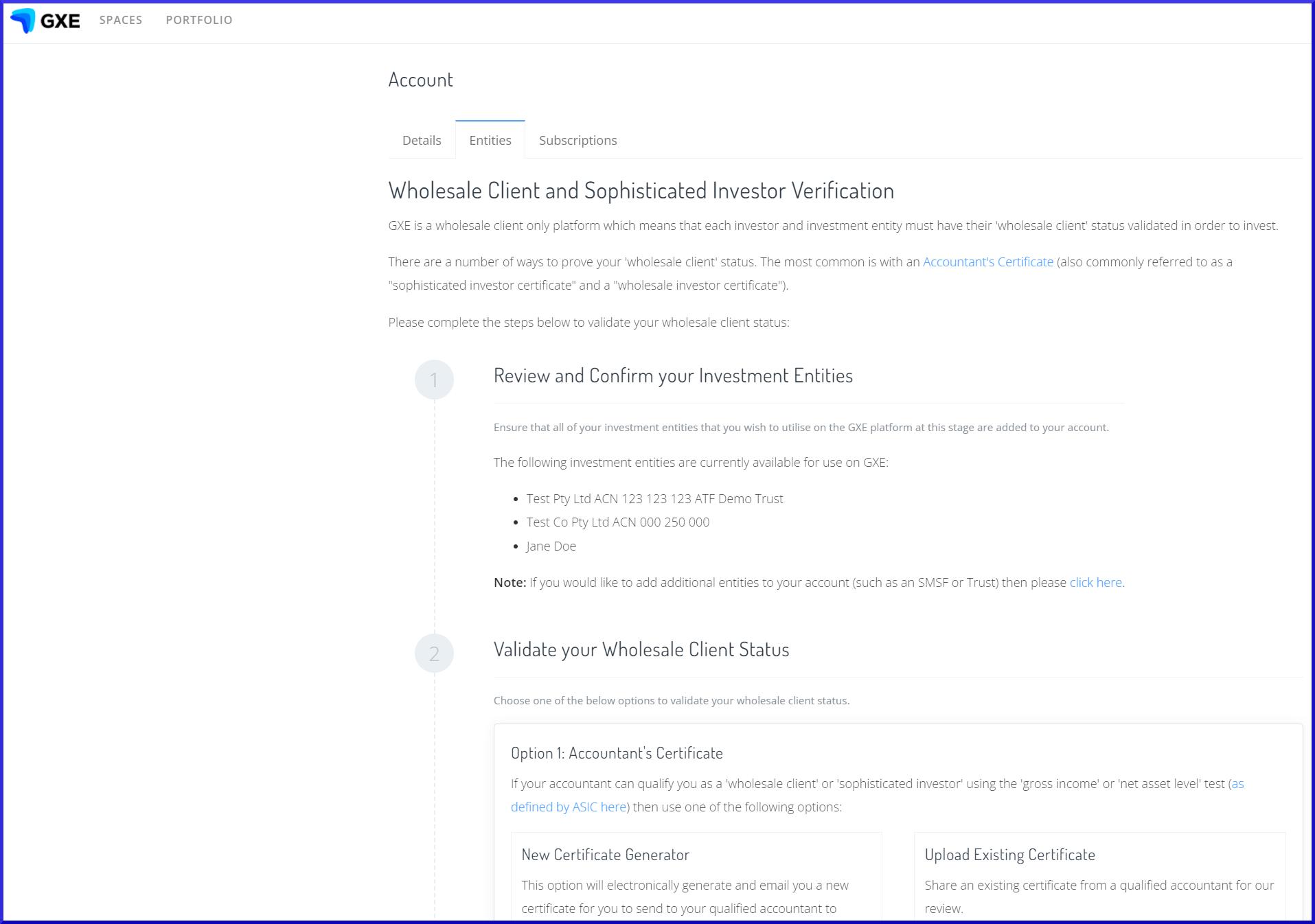
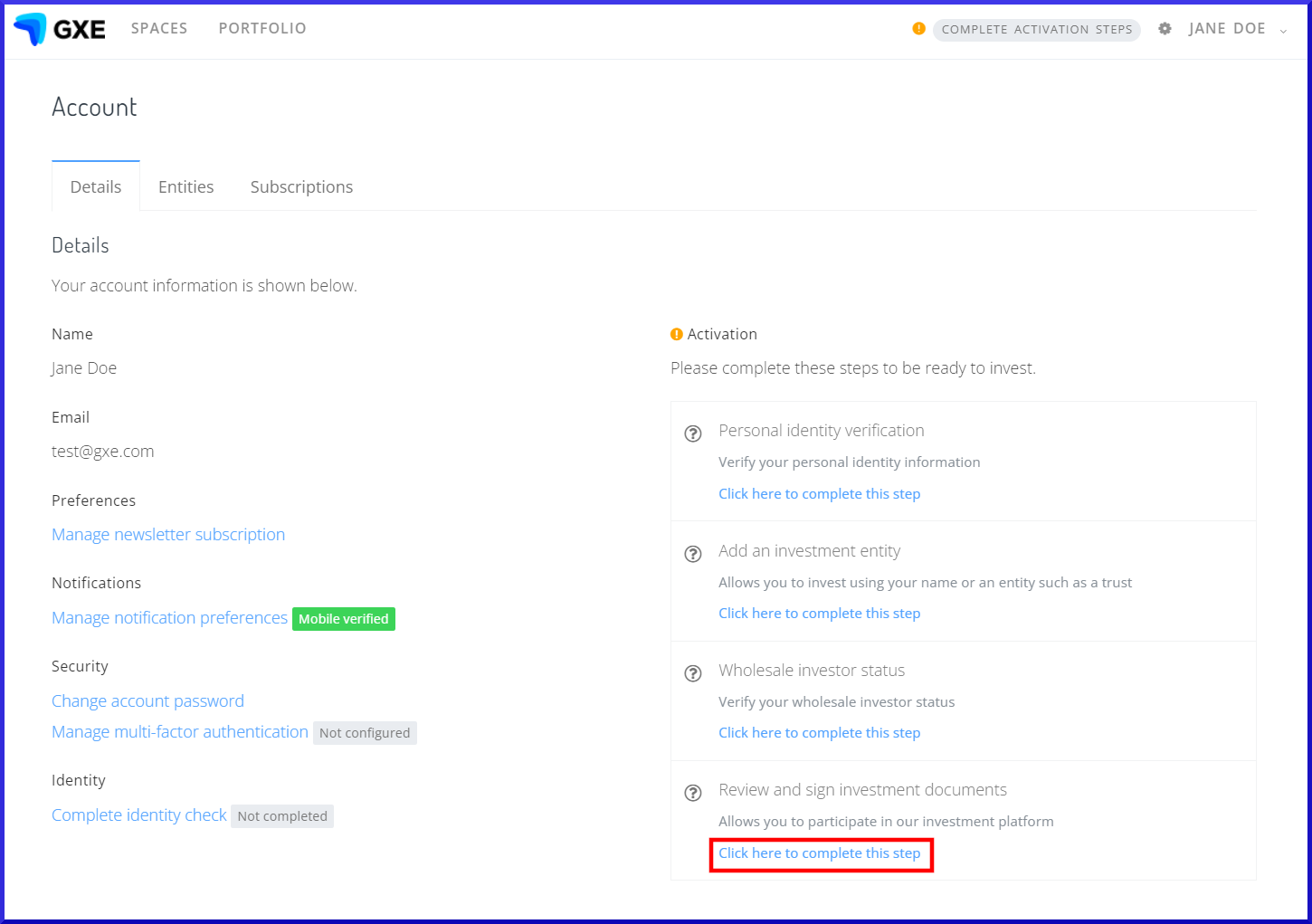
Step 5: Review and sign investment documents
Open your Activation steps again here
Click the link below the 'Review and sign investment documents' subheading
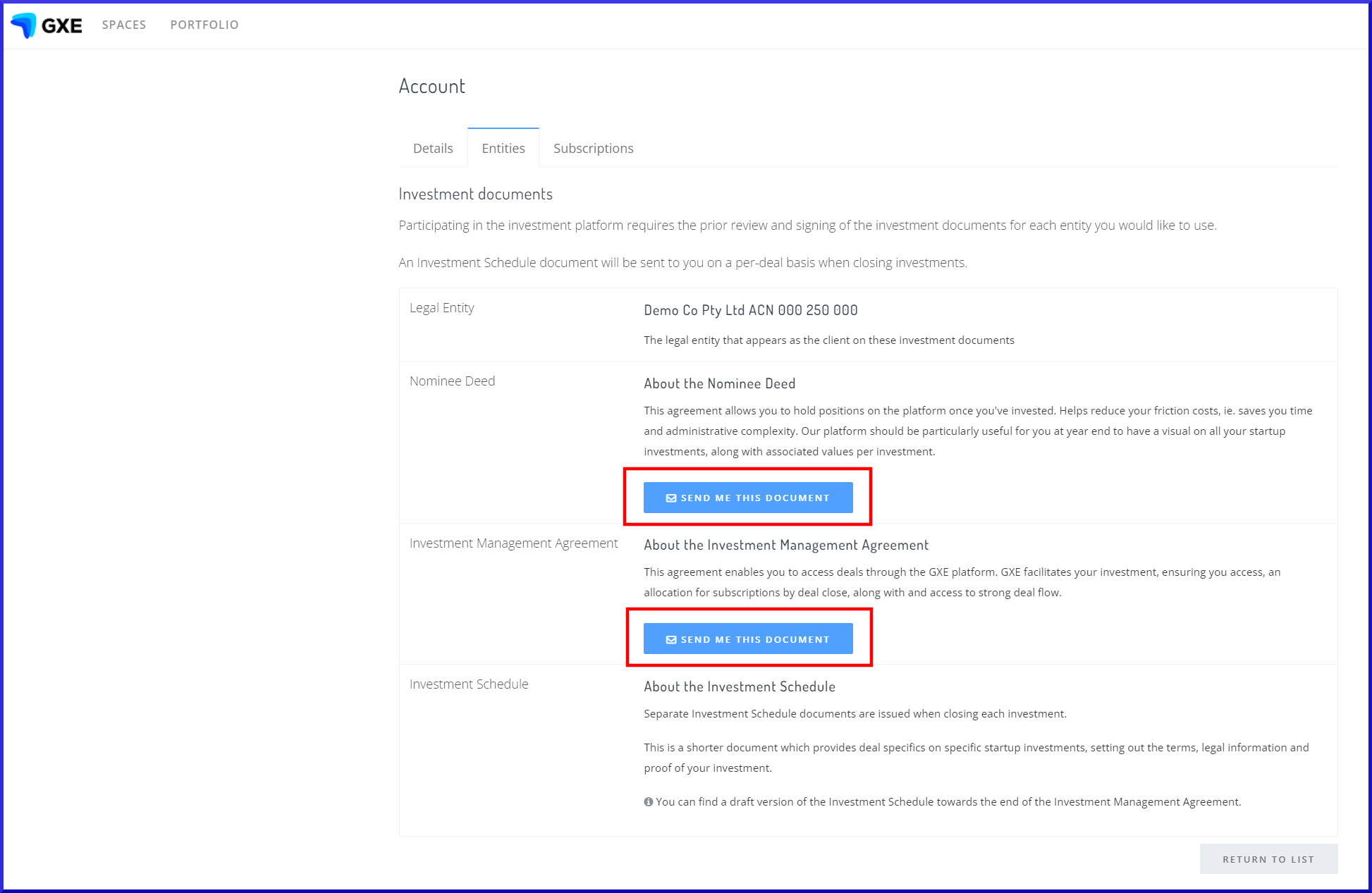
Now click both the blue buttons "Send me this document" for the two contracts "Nominee Deed" and the "Investment Management Agreement"
After requesting the agreements, you'll almost immediately receive two emails from noreply@mail.hellosign.com requesting you to sign documents.
Does your investment entity has two signatories? If you have a co-signatory then they'll receive two email signature requests from noreply@mail.hellosign.com only after you as the primary signatory has signed.
Important Notes
These activation steps must be completed prior to investing as they are regulatory requirements.
Need Help?
If you are still running into trouble whilst setting up your account or have any questions then please contact us at support@gxe.com for assistance.
The material on this page is provided by GXE Management Pty Ltd (ACN 652 482 598), a corporate authorised representative (CAR No. 1292543) of GXE Fund Services Pty Ltd (ACN 162 966 609, AFSL 460870).
This material is for information purposes only and should not be construed as an offer or solicitation or recommendation to buy or sell any financial products. The information in this presentation or communication is directed and available to residents of Australia only deemed to be Wholesale Clients under section 761G of the Corporations Act 2001.
This information is intended to be general in nature and is not personal financial product advice. Any advice contained in this document is general advice only and has been prepared without considering your objectives, financial situation or needs. Before acting on any information, you should consider the appropriateness of the information provided and the nature of the relevant financial product having regard to your objectives, financial situation and needs.
You should seek independent financial advice and read the relevant disclosure statements or other offer document prior to making an investment decision (including a decision about whether to acquire or continue to hold) about a financial product.