How do I add a new investment entity to my account?
Last updated: August 31, 2026
To add a new investment entity to your account GXE account, please follow the below guide.
⚠Note: If you are investing via a trust and/or company, then you must be a controlling party of the entity or trustee (usually this is a director or as an individual trustee). If you are an employee, advisor or other related party then please contact support@gxe.com to discuss your account options.
Open your "Entities" page - https://portal.gxe.com/v/account/entities
Click the blue "Add New Entity" button in the top right-hand corner
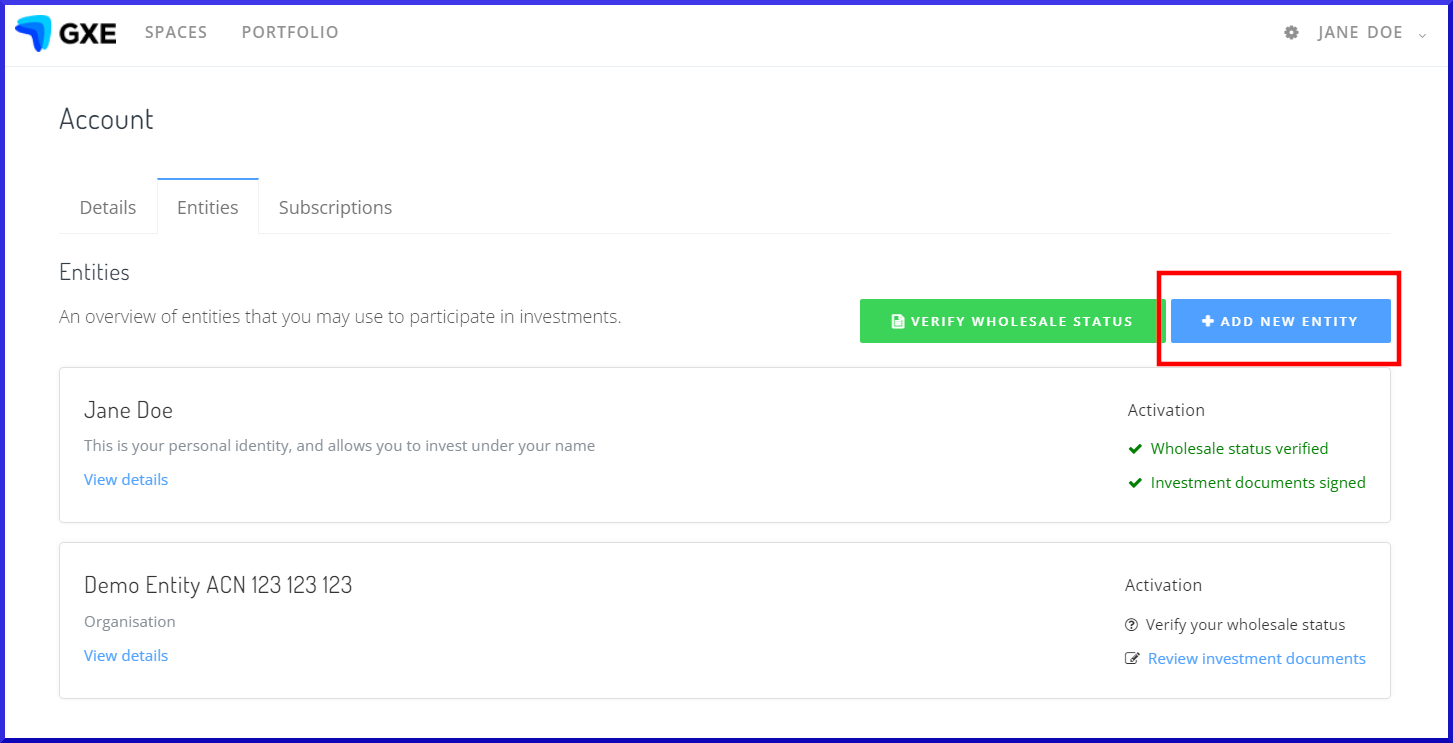
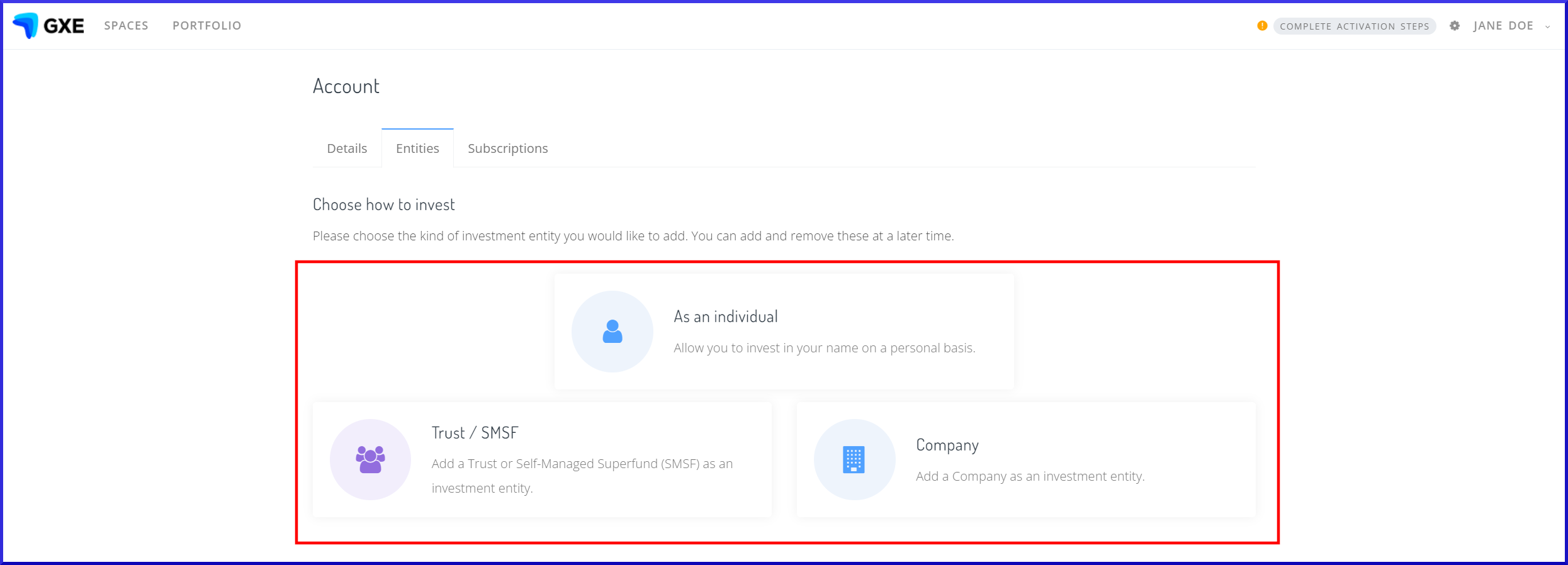
Choose the type of investment entity that you would like to add to your GXE account and complete the questions.
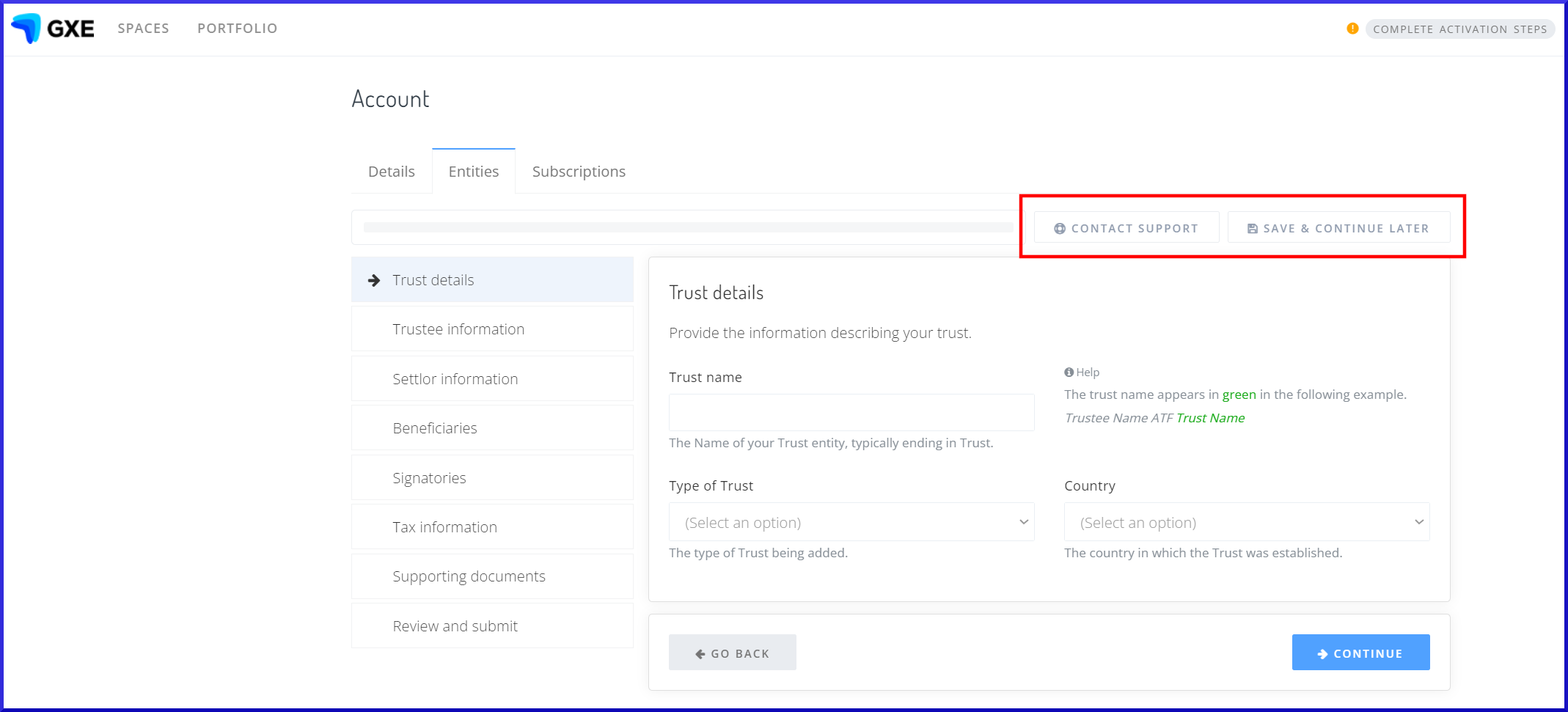
Now follow the steps to setup your chosen investment entities. At anytime you can save your progress or contact support by clicking the buttons in the top right-hand corner.
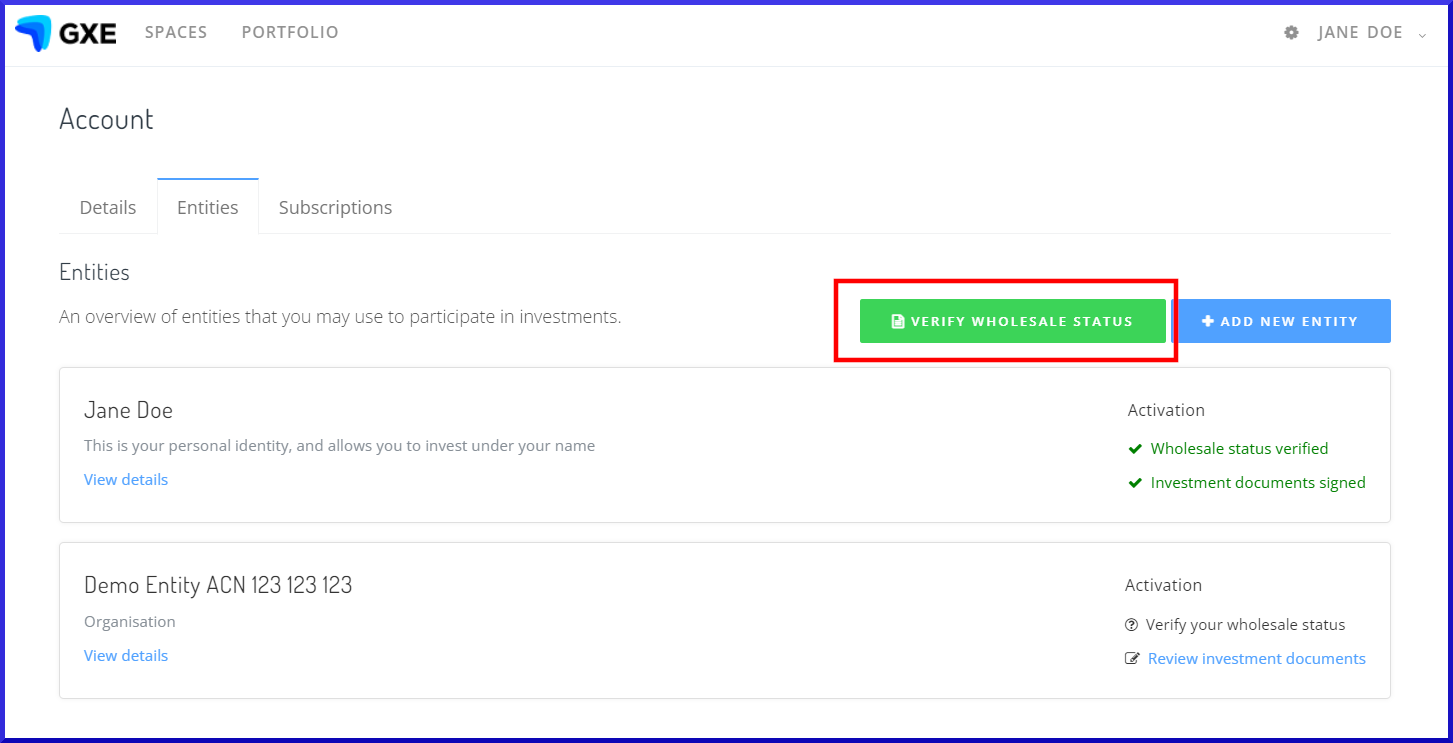
Once you've setup your new investment entity you'll need to certify it as a wholesale client - Open the Entities page again, click the green "Verify Wholesale Status" button and follow the steps.
Please use this guide if further assistance is needed.
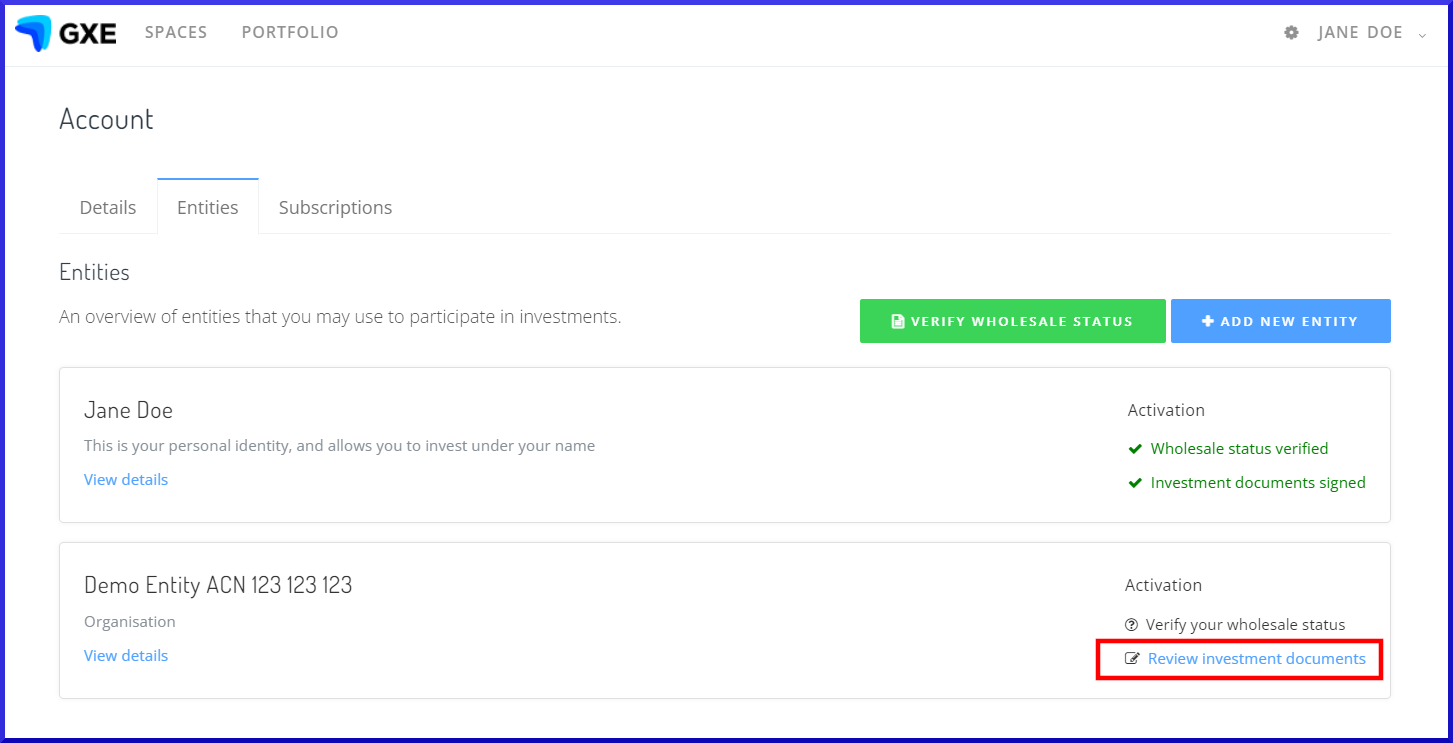
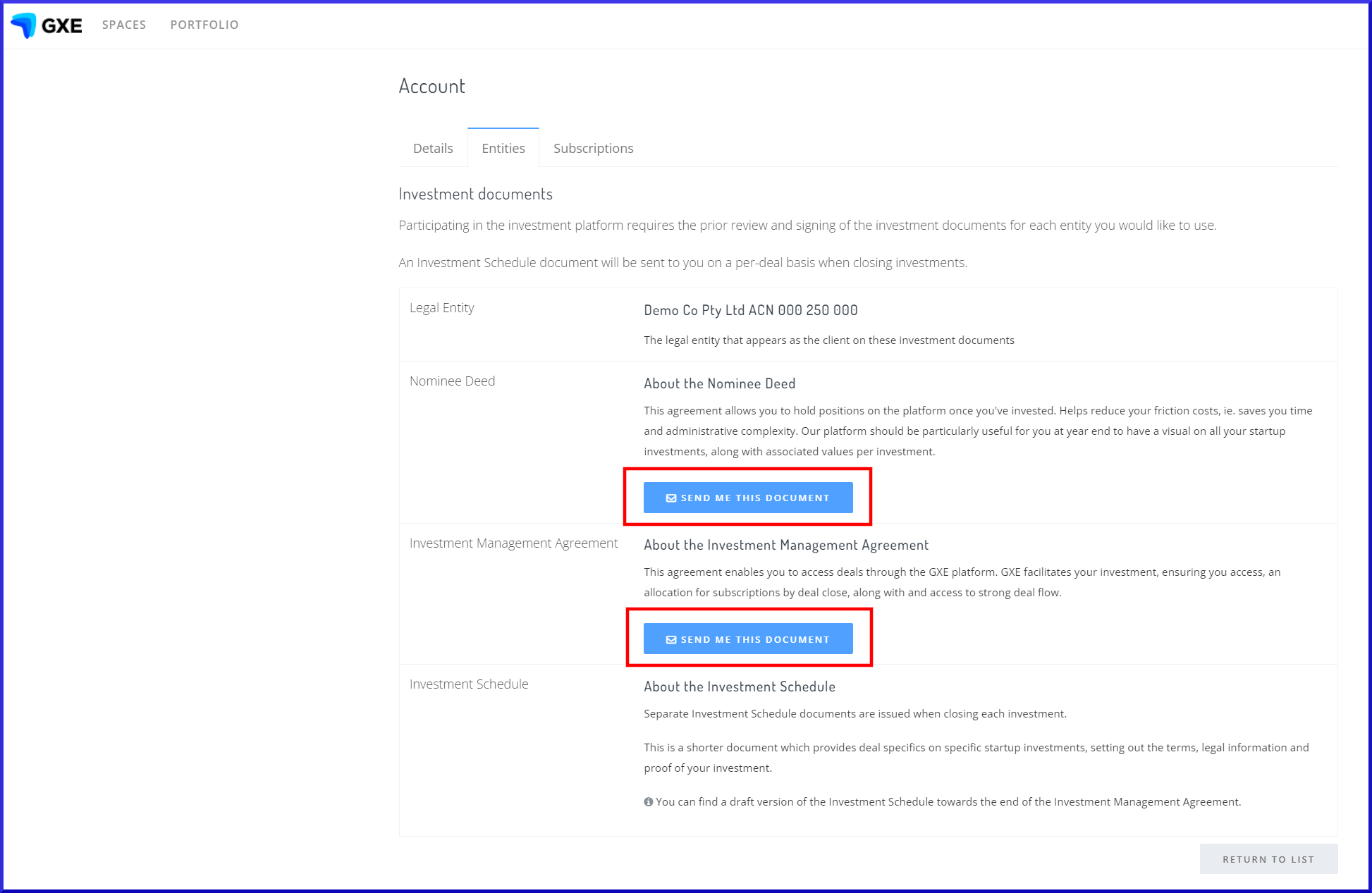
Once you've completed step 5, the final step is to review and sign the GXE platform agreements for your new investment entity. Open the Entities page again, click the blue text "Review investment documents" for your new entity then click both the blue buttons "Send me this document" for the two contracts "Nominee Deed" and the "Investment Management Agreement".
After requesting the agreements, you'll almost immediately receive two emails from noreply@mail.hellosign.com requesting you to sign documents.
Does your investment entity has two signatories? If you have a co-signatory then they'll receive two email signature requests from noreply@mail.hellosign.com only after you as the primary signatory has signed.
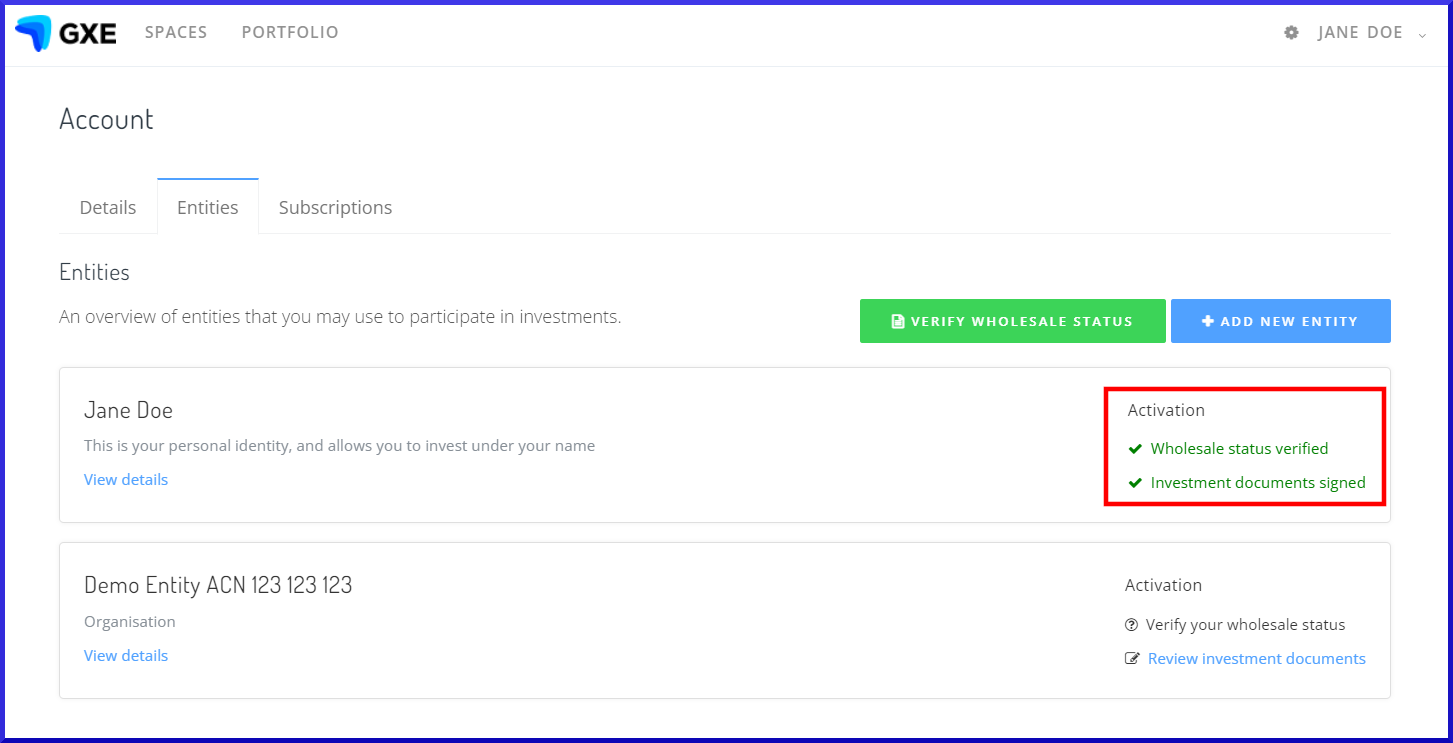
Now your new investment entity is ready to use! You can double check this in the Entities page as the wholesale status and investment documents will be green like in the screenshot below.
Want to add more investment entities? You can add more than one investment entity to your GXE account. To add another investment entity please start at step 1 again.
Getting additional help
If you are still running into trouble or have any questions then please contact us at support@gxe.com for assistance.